Wondering how to use the Sweekar AI Pocket Pet in 2026? A smooth start depends on the device version, its companion app, and the instructions supplied by the manufacturer. Exact features may vary, so check the current manual before relying on older videos or setup advice. That matters. A charging light, pairing prompt, or app screen can look different after a software update. Begin with the basics: charge the pet, install the official app if required, and follow its pairing steps. Review requested permissions before approving them.
Once connected, explore the available interactions at a gentle pace. Try a greeting, a simple question, or a short routine, then notice how the device responds. This guide will explain common setup checks, everyday use, personalization options, and practical troubleshooting without assuming every model works identically. Keep the app and device updated through official channels, and consult the product’s privacy information before sharing personal details. If a feature does not appear, it may depend on your model or region—not something you missed. The experience may feel less magical while you adjust settings. That is worth noticing. A little patience, a charged battery, and a quiet moment can make the first interaction clearer and more enjoyable.
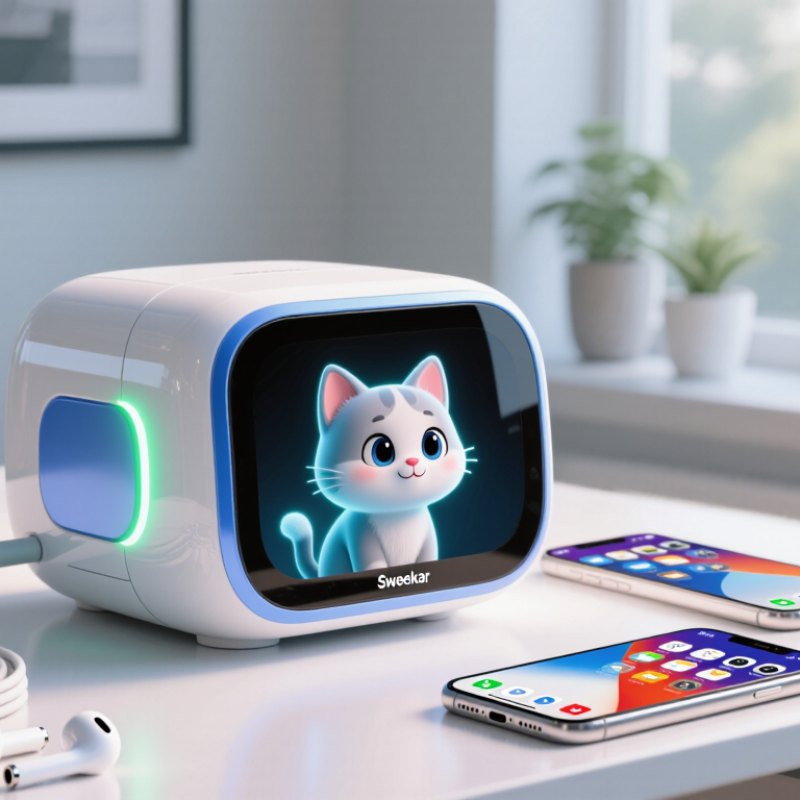
What the Sweekar AI Pocket Pet Is and What You Need to Begin
An AI pocket pet is a small digital companion designed for brief interactions throughout the day. Depending on its model, it may respond to touch, voice, or on-screen choices, and it might remember simple preferences. These features vary, so check the device’s guide rather than assuming every function is included. The word “AI” can sound impressive, but the experience may be simpler than a conversation with a person.
Before you begin, charge the device and place it on a clean, stable surface. Read the setup instructions, then install any required companion app from its official source. Follow the pairing steps and review microphone, notification, and data permissions. Grant only the access needed for features you plan to use. Keep the device nearby during setup; a weak connection can interrupt pairing.
Try a short greeting or tap one response option, then notice how the pet reacts. Small steps help. Explore care routines and settings gradually, since too many prompts can make the interaction feel less natural. Some replies may repeat or miss your meaning. That is worth noticing, not hiding. A pocket companion can be enjoyable, but it works best when its limits are clear and expectations stay realistic.
How to Charge, Power On, and Set Up the Device
Before charging, inspect the cable, port, and casing for damage. Use the supplied cable and a reputable adapter with the voltage listed in the device guide. Do not assume a fast phone charger is automatically suitable. USB-IF’s USB Power Delivery 3.1 specification supports power levels up to 240 watts, but that is a maximum standard capability, not a recommendation for this small device. Keep the pet on a dry, hard surface while charging. Stop if it becomes unusually hot, smells odd, or shows swelling.
When charging is complete, disconnect the cable and hold the power button until the screen or status light responds. Some devices need a short press; others need a longer hold, so check the printed guide rather than guessing. Small detail, easily missed. If there is no response, charge for the period specified in the guide, then try again. Avoid repeatedly pressing buttons while it is plugged in.
For setup, follow the on-screen prompts and connect to a phone only if the device requests it. Deloitte’s 2024 Connected Consumer Survey drew responses from 4,000 U.S. adults, underscoring how common connected-device use has become; still, setup steps differ by model. Keep the pet near your phone during pairing, allow only requested permissions, and confirm its clock or language settings. I would double-check the Wi-Fi details before moving on. A rushed setup can make a simple device feel oddly stubborn.
USB Charging Voltage Levels to Know
USB charging starts at 5 V; USB Power Delivery can negotiate higher fixed voltage levels when both the charger and device support them. For safe charging, use the voltage and charger guidance provided with your device—do not assume it supports every level shown.
How to Pair the Pocket Pet With Its App
Charge the pocket pet fully before pairing; a weak battery can interrupt setup and make a connection look unreliable. Install its companion app from your phone’s official app store, then enable Bluetooth and the app’s requested Nearby Devices permission. Keep the toy beside your phone. I still find it oddly easy to rush this part.
Open the app and choose its add-device or pairing option. Turn on the pet when prompted, then select the matching device name shown on screen. Avoid pairing through your phone’s Bluetooth settings unless the instructions specifically say to; a saved connection there can sometimes confuse the app. When pairing succeeds, test one simple action, such as a sound or light response. If nothing happens, close the app, restart both devices, and try again. Check permissions before repeating the whole setup.
This app-based step fits a phone-centered world, but it is not foolproof. GSMA’s Mobile Economy 2024 report estimates that 4.6 billion people used mobile internet in 2023, representing 57% of the global population. That figure describes mobile access, not toy compatibility, so check the app’s listed phone requirements before pairing. A small detail matters: keep the app open during setup, and don’t grant permissions it does not explain.
How to Interact With Your Pet and Explore Its Features
A pocket AI pet works best when you treat it like a small, responsive device, not a mind reader. Start with a simple greeting, then try short questions or commands. Pause after each one and watch for a light, sound, or screen response. If it has touch sensors, tap gently and notice whether different areas trigger different reactions. Explore its settings one at a time; changing several at once makes it harder to tell what caused a response. It may misunderstand you. That is part of learning its limits.
Common Sense Media’s 2025 survey found that 72% of U.S. teens had tried AI companions. That figure describes teens, not pocket-pet owners, but it shows how familiar conversational AI is becoming. Try a short daily routine: greet your pet, test one feature, then put it away. Check the device guide for charging, controls, and any microphone or data settings. Avoid sharing personal details, even during playful conversations.
Tips: Use clear phrases and give the pet a moment to respond. Keep the volume low in quiet rooms. If it repeats a response, reset or consult the guide rather than assuming it has learned your preference. Notice what feels fun—and what feels a little awkward.
How to Manage Settings, Updates, and Common Issues
How to Use the AI Pocket Pet in 2026?
An AI pocket pet is easier to enjoy when its settings match your routine. Start with the device’s own guide, then check options for sound, screen brightness, language, and notifications. Lower brightness can help conserve battery during a long trip. Keep the microphone clear if voice features are enabled, and review privacy controls before sharing personal details. Menu names vary by model, so avoid guessing when an option is unclear.
For updates, use only the update method described in the device guide or its official companion app, if one is available. Charge the pet first and keep it near a stable Wi-Fi connection during installation. If it freezes, try a normal restart before changing settings or resetting it. A reset may erase saved preferences. Check battery level, connection, and date settings when responses seem delayed. Some glitches are hard to reproduce, so note what happened and when before contacting support.
Tips: Wipe the screen with a soft, dry cloth. Keep a record of your preferred settings before an update. If a feature still fails after restarting, pause and check the official help instructions rather than repeatedly reinstalling it.
Conclusion
This guide explains how to get started with a sweekar ai pocket pet, from preparing the device and checking its charging needs to powering it on and completing the initial setup. It walks through connecting the pet to its companion app, following the on-screen pairing steps, and confirming that the device is ready to use. Once connected, you can explore ways to interact with your digital companion, learn how its responses and features work, and adjust the experience to suit your preferences.
The guide also covers everyday care, including where to find settings, how to check for software updates, and what to try if pairing or charging does not go as expected. Simple checks—such as confirming the battery has power, keeping the device near your phone during setup, and restarting the app or pet—can often resolve common hiccups and help you enjoy a smoother experience.